
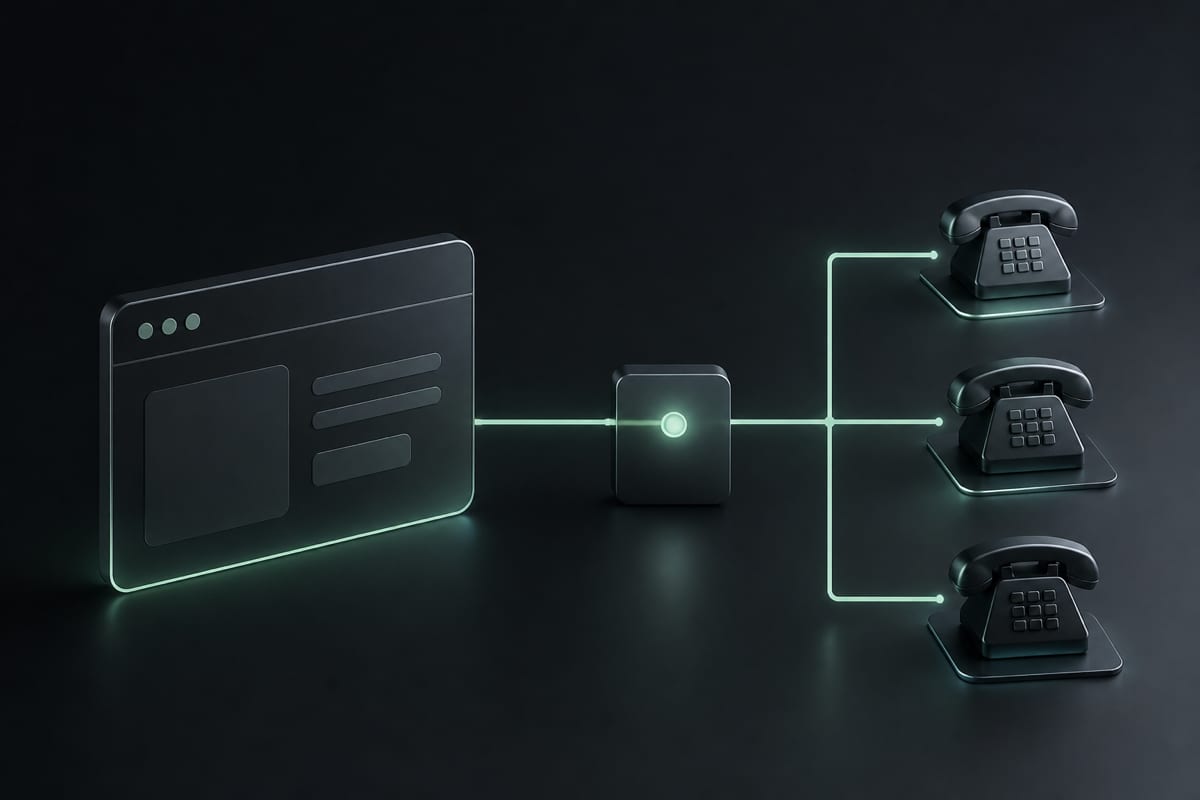
In short: WebRTC (Web Real-Time Communication) is the open-source web standard that enables direct, real-time voice, video, and data transfer inside browsers like Google Chrome and Apple Safari. It captures your microphone audio, encrypts it automatically, and transmits it over the internet without requiring any software installations or browser plugins. To connect to standard landlines or mobile devices, this digital stream passes through a secure gateway bridge to the traditional global telecom network (PSTN). While highly secure and convenient for international travel, browser calling does not support emergency services due to routing constraints, and BLAH! phone disables the dial pad once a call is active to maintain a lightweight, streamlined interface. Credits never expire, and live rates are displayed before dialing.
Imagine opening your preferred web browser on a laptop, typing a phone number, clicking "call," and immediately hearing a physical landline ring on the other side of the world. You didn't download an application, you didn't install a browser extension, and you didn't have to configure complex audio settings.
Historically, making voice calls over the internet (VoIP) required heavy, proprietary software like Skype, specialized desktop clients, or dedicated hardware setups. Today, this entire communication pipeline runs seamlessly inside a standard web page.
The technology powering this frictionless experience is WebRTC (Web Real-Time Communication). This guide demystifies WebRTC, walking through how your voice travels from a laptop to a traditional telephone, the security mechanisms that protect your privacy, and the inherent operational boundaries of browser-based telephony.
What is WebRTC?
At its core, WebRTC is an open-source project and HTML5 standard defined by the World Wide Web Consortium (W3C) and the Internet Engineering Task Force (IETF). Its goal is simple: to enable browsers to run real-time voice, video, and data applications natively.
Before WebRTC was formally adopted in the 2010s, websites requiring microphone or camera access had to rely on third-party plugins like Adobe Flash or Microsoft Silverlight. These plugins suffered from severe security vulnerabilities, high battery drain on mobile devices, and frequent browser crashes.
WebRTC eliminated the middleman by building media capture, compression, and transport APIs directly into the browser's source code. Today, it is supported by default across all major modern web browsers, including:
- Google Chrome (Desktop & Mobile)
- Apple Safari (macOS & iOS)
- Mozilla Firefox
- Microsoft Edge
Because WebRTC is built directly into these browsers, you do not need to download or install any external software. Visiting a WebRTC-enabled page is all that is required to transform your device into a secure communication node.
The Journey of a Call: From Web Browser to Physical Phone
To understand how digital audio inside a browser on your laptop turns into a physical ring on a recipient's handset, it is helpful to look at the process step-by-step. Because standard phones do not run web browsers, the connection requires a translation bridge.
[ Your Browser ]
       │ (Analog audio captured from microphone)
       ▼
[ Local Browser Engine ]
       │ (Encrypted using SRTP & DTLS)
       ▼
[ The Internet (WebRTC Packets) ]
       │ (Routed via STUN/TURN servers)
       ▼
[ Media Gateway (PSTN Bridge) ]
       │ (Decrypted, translated to telephony signaling)
       ▼
[ Public Switched Telephone Network (PSTN) ]
       │ (Routed via local carrier towers/cables)
       ▼
[ Recipient's Physical Phone ]
Step 1: Media Capture (Analog to Digital)
When you initiate a call on a WebRTC service, the browser uses standardized media APIs to communicate with your device's operating system. It requests access to the active microphone. Once permission is granted, the browser captures the analog sound waves of your voice, filters out background static, and digitizes the signal into high-fidelity data packets.
Step 2: Session Negotiation & Signaling
Before audio packets can flow, your browser must establish a path to the receiver. This is done via signaling. While WebRTC handles the media flow, the website's backend server coordinates the setup. Using a text-based protocol called SDP (Session Description Protocol), the browser negotiates network configurations, capabilities, and security keys. During this phase, network utilities like STUN (Session Traversal Utilities for NAT) are used to discover your public IP address, ensuring the audio packets know exactly where to return.
Step 3: Stream Encryption & Transmission
Once the connection path is negotiated, WebRTC encrypts the audio packets on your device. These encrypted packets are sent across the internet using real-time protocols designed to minimize latency. Because VoIP requires immediate delivery, it values speed over packet retransmission, ensuring that your voice does not lag or sound choppy, even on variable network connections.
Step 4: Crossing the Telephony Bridge (The PSTN Gateway)
Because you are calling a standard telephone number rather than another browser, the encrypted WebRTC audio packets cannot travel directly to the end device over the open internet. Instead, they travel to a secure media gateway or PSTN (Public Switched Telephone Network) bridge.
This gateway acts as an interpreter. It sits between the internet and the global telephone network, receiving the secure WebRTC packets from your browser, decrypting them, and translating them into the specific signaling and audio formats used by global cellular networks and landlines.
Step 5: Ringing the Destination
The gateway pushes the translated call onto the PSTN—the global network of copper lines, fiber optics, and cellular networks. The recipient's local network carrier receives the signal and rings their handset. When they answer, the gateway continues to translate your browser's WebRTC audio into standard telephone signals, and their telephone audio back into secure WebRTC packets for your browser, in real-time.
To learn more about the differences between this and app-based options, read our guide on how to call from your browser without an app.
Security & Privacy: Built into the Core
WebRTC was developed with modern web threats in mind. Unlike older communication standards where security was treated as an optional add-on, WebRTC mandates strict security and privacy standards.
The Browser Sandbox Model
Web browsers operate on a strict "sandbox" principle. This means that a website running inside a browser tab is isolated from the rest of your computer. It cannot read your local hard drive, install persistent software, or access your hardware (like your webcam or microphone) without your explicit, temporary permission.
Mandatory Cryptographic Encryption
WebRTC does not allow unencrypted media streams. All audio and video packets are encrypted using two mandatory cryptographic protocols:
- SRTP (Secure Real-time Transport Protocol): Encrypts the actual audio data payload, ensuring your conversations cannot be reconstructed or eavesdropped on.
- DTLS (Datagram Transport Layer Security): Securely exchanges the cryptographic keys between your browser and the receiving gateway, preventing middleman attacks.
Because of this mandatory architecture, calling from a browser is highly secure, protecting your audio stream even if you are connected to an unsecured public Wi-Fi network at an airport or coffee shop.
Zero Software Footprint
When you install a desktop application or mobile app, it often places persistent files on your storage, updates registry keys, and may run background services even when the app is closed. Browser-based WebRTC calling leaves no permanent footprint on your machine. Once you close the browser tab, the sandbox is completely torn down, terminating all communication processes and clearing any temporary session data from memory.
For further comparisons, see our analysis of the best web-based calling apps or explore travel tips in our guide to calling internationally without a SIM card.
Troubleshooting Browser Microphone Permissions
Because web browsers are highly protective of your privacy, the most common operational challenge is managing microphone permissions.
When you first initiate a call, your browser will prompt you with a dialog box stating: blahphone.com wants to use your microphone. You must click Allow for the call to work.
What happens if you block or dismiss the prompt?
If you accidentally click "Block" or dismiss the window, the browser permanently denies the website access to your microphone. The site's interface will still let you dial numbers and establish connections, but the receiving party will hear absolute silence because your browser is physically preventing the website from capturing your voice.
How to reset microphone permissions:
In Google Chrome (Desktop)
- Look at the left side of the address bar (next to the URL).
- Click the padlock or settings slider icon.
- Locate the Microphone setting and toggle it to Allow.
- Refresh the page to reload the settings.
In Apple Safari (macOS)
- With the calling page open, click Safari in the top menu bar.
- Select Settings for blahphone.com... (or Settings for This Website...).
- Next to Microphone, change the dropdown selection from Deny or Ask to Allow.
- Refresh the page.
On Mobile Devices (iOS & Android Safari/Chrome)
- Open your device's primary Settings app.
- Navigate to Apps (Android) or scroll down to Safari or Chrome (iOS).
- Ensure that the browser application itself has permission to access the physical microphone in your device settings.
- Return to your browser, tap the site settings icon in the address bar, and ensure the website's microphone access is allowed.
For a detailed step-by-step walkthrough, visit our dedicated tutorial on browser microphone permissions.
Critical Operational Limits: Emergency Calls & DTMF
While WebRTC browser-to-phone calling offers unmatched accessibility and convenience, it has two critical technical boundaries that users must understand.
1. WebRTC is NOT for Emergency Services
Browser-based calling services are not a replacement for traditional telephone service and cannot be used to call emergency services (such as 911, 112, or 999).
When you call an emergency number from a standard landline or mobile network, the telecom operator performs two automatic safety procedures:
- Location-Based Routing: The carrier identifies the physical landline copper connection or the exact cellular tower transmitting your signal, routing your call to the physically closest local emergency dispatch center.
- Automatic Location Identification (ALI): The system automatically pushes your physical address or GPS coordinates onto the dispatcher's terminal so they can deploy emergency services even if you cannot speak.
Because browser-based VoIP traffic travels over the open internet, your packets may be routed through remote servers, virtual private networks (VPNs), or distant data centers. A browser dialer cannot verify your exact physical location or transmit accurate coordinate data to local emergency dispatchers. In an emergency, always use a native cellular connection, local landline, or physical hotel phone to ensure local emergency services are contacted accurately.
2. Disabled In-Call Dial Pad (No DTMF)
To keep the calling client lightweight, secure, and compatible across all desktop and mobile browsers, BLAH! phone uses a streamlined connection model that carries a key design choice:
The dial pad is entirely disabled during active calls.
This means that once your call is successfully connected, you cannot type on your keyboard or screen to transmit keypad tones (Dual-Tone Multi-Frequency or DTMF) down the line. If you dial a company or institution that uses an automated voice menu (IVR) requiring you to "press 1 for billing" or enter a multi-digit account number, you will not be able to navigate the system using the browser dialer.
How to handle automated menus with BLAH! phone:
- Voice-Activated Menus: Many modern corporate support lines use speech recognition. Speak clearly into your microphone, saying phrases like "customer service," "billing," "agent," or "operator" to bypass numeric menus.
- Prompt Timeout: Many automated systems will automatically route you to a live operator if you do not press any keys after the menu prompts repeat two or three times.
- Find Direct-Dial Numbers: Look for direct geographic numbers that bypass the main corporate switchboard. You can search our curated service numbers directory to see if a direct line is available.
- Alternative Channels: If a system strictly requires keypad input to enter a passcode, credit card number, or PIN, we recommend using the company's official secure mobile app chat, online portal, or a native phone line that supports in-call DTMF dialing.
To learn more about calling customer support desks, read our guide on how to call customer service from abroad.
Streamlined Calling with BLAH! phone
At BLAH! phone, we leverage the native capabilities of WebRTC to provide a straightforward, transparent communication service designed for international travelers, expats, and remote workers:
- No Phone Verification Required: You do not need an active local SIM card, a roaming plan, or a primary mobile number to verify your account. You can register and begin making calls immediately over Wi-Fi.
- Transparent Pre-Dial Rates: The exact per-minute rate for your destination is displayed directly in the dialer before you click call. There are no hidden setup fees, connections costs, or platform surcharges.
- Non-Expiring pay-as-you-go Credits: If you only need to call a bank or service provider once every few months, you shouldn't be forced into a monthly subscription. Our pay-as-you-go credits remain active in your account indefinitely.
- Cross-Device Compatibility: Works natively inside Chrome and Safari across desktops, laptops, tablets, and smartphones without requiring App Store downloads.
FAQ, Legal Disclaimers & Technical Sources
Frequently Asked Questions
Does browser calling work over a VPN?
Yes, WebRTC calls can work over most virtual private networks (VPNs). However, because WebRTC utilizes STUN/TURN servers to discover connection paths, certain aggressive corporate VPN configurations or strict firewalls may block WebRTC traffic or cause audio to drop. Connecting to a standard residential or hotel Wi-Fi connection usually resolves network blocks.
Can I receive incoming calls on BLAH! phone?
No. BLAH! phone is designed exclusively as an outbound calling dialer. It does not assign you a permanent inbound phone number or accept incoming calls. This enables us to maintain a lightweight, private, and app-free browser client.
Does BLAH! phone store audio recordings of my calls?
No. All media streams are transmitted in real-time through secure media gateways directly to the destination telecom provider. We do not record, cache, or store the audio content of your calls on our servers, ensuring your conversations remain entirely private.
Legal Disclaimers
- Emergency Telephony: BLAH! phone and its browser-based dialing services are not a replacement for traditional telephone systems. Under no circumstances should this service be used to place emergency calls (such as 911, 112, 999, or other localized emergency services). Users must maintain access to standard telephony services to ensure emergency routing.
- PSTN Interconnection Rates: Outbound calling rates to geographic and toll-free destinations are subject to carrier network termination fees and connection routing. While we display live rates transparently prior to dialing, rates may fluctuate based on global telecom pricing.
- Third-Party Services & Keypad Navigation: Because BLAH! phone does not support in-call DTMF (dial pad input), we are not responsible for calls that cannot be completed due to mandatory automated keypad menus, PIN entries, or interactive voice response requirements of receiving businesses.
Technical Sources & References
- W3C WebRTC Specification: Web Real-Time Communication Working Draft, World Wide Web Consortium (W3C).
- IETF RFC 3711: The Secure Real-time Transport Protocol (SRTP), Internet Engineering Task Force.
- IETF RFC 5245: Interactive Connectivity Establishment (ICE): A Protocol for Network Address Translator (NAT) Traversal, Internet Engineering Task Force.
- IETF RFC 5763: Framework for Using Device-to-Device Session Description Protocol (SDP) Security Descriptions with Datagram Transport Layer Security (DTLS).
Next Steps
To continue exploring browser-based calling and travel-friendly communication:
- Test your browser from the dialer.
- View live calling rates for any global prefix on our calling destinations page.
- Learn more about reaching support lines in our guide on calling customer service from abroad.
- Browse our index of guides for troubleshooting tutorials and technical advice.