
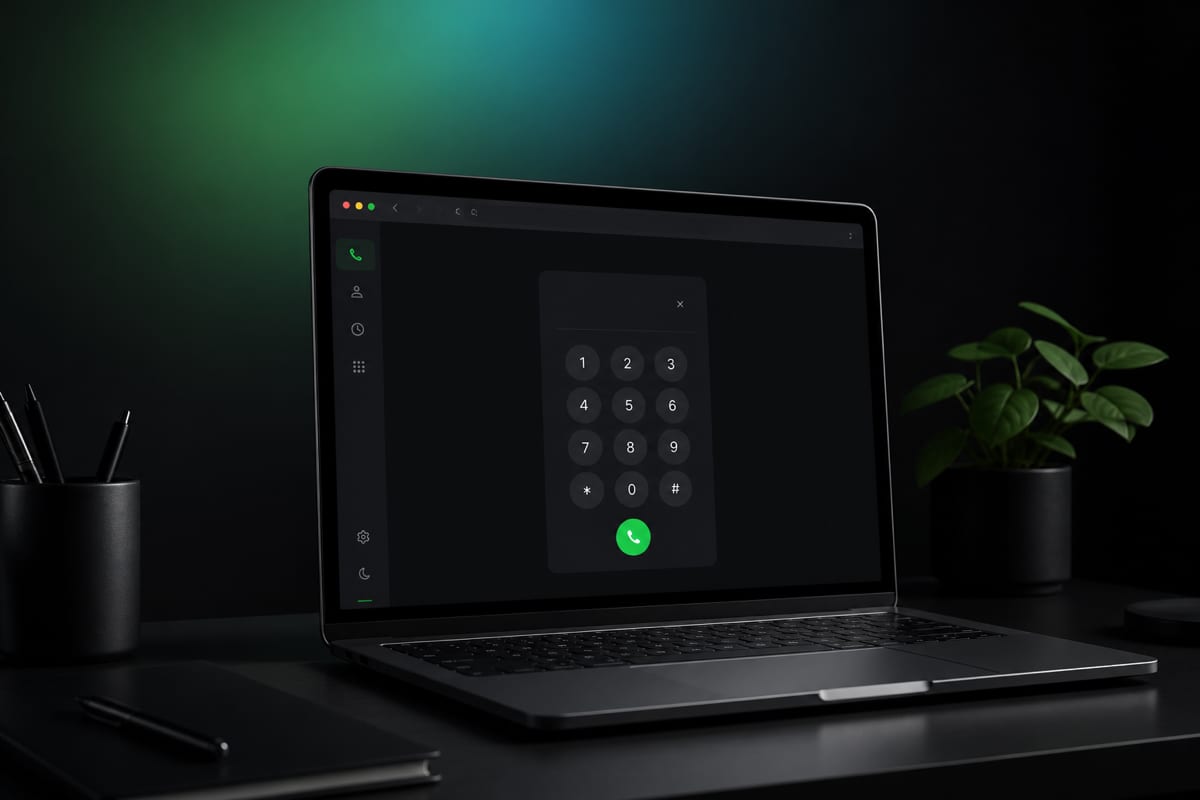
In short: You can place real phone calls to mobiles and landlines directly from Chrome or Safari using a web dialer—no app installation, no SIM card swaps, and no recipient requirement to use the same platform. Simply allow microphone access, enter the recipient's number in the E.164 international format, and connect. To ensure optimal audio quality, a stable Wi‑Fi connection is recommended. Open the browser dialer to see the live rate before you call.
While native applications are useful when they are already installed, updated, and ready, they present significant friction in several common scenarios. For instance, when using a work laptop, a borrowed computer, an internet café workstation, or a storage-limited device, downloading and installing a native VoIP (Voice over IP) client is often restricted or impossible.
Browser-based calling bridges this gap seamlessly. By opening a standard webpage, granting microphone permissions, and typing a destination number, you can initiate a high-quality call. The person on the other end receives the call on their ordinary mobile or landline as a standard incoming telephone call—meaning they do not need to install an app, create an account, or even be connected to the internet.
This comprehensive guide covers the technical mechanics behind browser-based calling, how it compares to standard mobile carriers and chat applications, browser-specific configurations for macOS, iOS, Windows, and Android, and actionable optimizations for audio and network settings.
What “call from the browser” actually means
When you place a call from a web page, the browser utilizes a set of standardized technologies known as WebRTC (Web Real-Time Communication). WebRTC allows web browsers and mobile applications to exchange real-time media (audio and video) directly through APIs, without requiring any proprietary plugins or third-party desktop downloads.
From a technical perspective, the workflow of a browser call operates as follows:
- Media Capture: When you click the call button, the browser requests access to your microphone using the
getUserMediaAPI. - Session Negotiation: The browser exchanges Session Description Protocol (SDP) packets with the calling gateway. These packets describe the media formats, codecs (commonly adaptive voice codecs such as Opus), and network routing possibilities.
- Stream Encryption: Once a connection path is established, your audio is converted into digital packets and streamed in real-time using Secure Real-time Transport Protocol (SRTP) over Datagram Transport Layer Security (DTLS).
- The Telephony Bridge: Because a web browser cannot connect directly to standard telephone copper wires or cellular towers, your encrypted audio stream is transmitted to our upstream telephony partner (our carrier network provider).
- The PSTN Hand-off: Our carrier network translates the digital WebRTC stream into standard telephony formats and routes it into the Public Switched Telephone Network (PSTN)—the global network of physical switches and cellular base stations that manages worldwide voice traffic.
This system ensures that your voice travels securely over the internet until it is converted into a standard analog or digital cellular signal, delivering a seamless call to any standard mobile phone or landline in the world.
Comparing browser calling to alternatives
To understand when a browser dialer is the right tool, it is helpful to contrast it with chat networks, carrier plans, and web widgets.
| Calling Method | Media Transport | Recipient Requirements | Hardware & Plan Requirements | Best For |
|---|---|---|---|---|
| Browser Dialer (PSTN) | Audio travels over IP (WebRTC), then bridges to the global phone network | Any standard mobile or landline number (no app or internet required) | Modern browser (Chrome or Safari) + microphone. No SIM card needed | Calling landlines, hotels, and international businesses directly from a computer without installing software (Note: Not suitable for automated menus requiring in-call key presses). |
| Chat Application Voice (e.g., WhatsApp, FaceTime, Telegram) | End-to-end proprietary IP network | Must use the same application and have an active internet connection | App install, account registration, and active internet on both devices | Informal voice or video chat with friends and family who already use the same service |
| Carrier Dialer | Direct cellular radio network (GSM/LTE/5G) | Any standard mobile or landline number | Active physical SIM or eSIM, cellular coverage, and voice roaming plan | Local calls on the go when cellular coverage is strong and roaming fees do not apply |
| Click-to-Call Widgets | Two separate PSTN calls bridged by a server | Any standard mobile or landline number | An active, working phone number of your own to receive the initial callback | Initiating customer support calls from a company's website when you have your phone handy |
As shown above, browser calling excels when you need PSTN reach—such as contacting a local business, a hotel desk abroad, or a family member on a landline—directly from your computer or tablet without relying on active cellular networks or forcing the recipient to install an app.
Step-by-step: how to call without an app
Placing a call from BLAH! phone is designed to be highly streamlined, minimizing onboarding friction so you can connect in seconds.
- Access the Web Dialer: Open Chrome or Safari and navigate to the BLAH! phone dialer page. Bookmark the URL for quick access in the future.
- Create or Sign In to Your Account: Enter your email address to sign up or sign in. BLAH! phone uses secure, passwordless authentication links. Crucially, no mobile phone verification is required to create an account or start calling. This makes the service immediately accessible even if you do not have an active SIM card or cellular signal.
- Grant Microphone Access: When prompted by your browser, click Allow. If you have previously blocked microphone permissions for the site, you will need to reset them in your browser's security settings (usually accessible by clicking the lock icon next to the URL in the address bar). For more details, consult our guide on allowing browser microphone permissions.
- Enter the Number in International Format: Type the destination phone number using the standard E.164 international format, starting with a plus sign (
+) followed by the country code, area code, and local number.- Tip: Always drop the national trunk prefix (usually a leading
0or8) when dialing internationally. For example, a London landline written locally as020 7946 0000must be dialed as+44 20 7946 0000(dropping the leading0after the+44UK country code).
- Tip: Always drop the national trunk prefix (usually a leading
- Review the Live Rate Quote: Before initiating the call, BLAH! phone queries our carrier routing tables to display the exact live per-minute rate for your specific destination. Calling rates are transparently shown per destination prefix and number type (such as mobile versus landline), ensuring there are no hidden fees or billing surprises.
- Initiate and Manage the Call: Press the green Call button. You will hear a standard digital ringback tone. Once the recipient answers, you can talk as normal and end the call from the dialer when you are done.
- Important Note on In-Call Keypads: The dial pad is disabled during active calls. This means you cannot enter extensions or navigate automated interactive voice response (IVR) menus that require you to press numbers (such as "press 1 for customer service") once the call is connected. Ensure you are calling direct-dial lines where a physical person or direct agent answers.
- Hang Up and Pay-As-You-Go: Click the red End Call button to disconnect. BLAH! phone operates on a transparent, pay-as-you-go model. Your account balance is deducted in real-time based on the exact minutes used. Any purchased calling credits are stored securely and never expire, so you can keep them for future travel or emergency backup.
Open the browser dialer to verify your setup and see the live rate before you add credits.
Chrome vs. Safari vs. mobile platform quirks
While WebRTC is a widely adopted open standard, browser engines and mobile operating systems handle real-time media and background execution in slightly different ways. Knowing these platform-specific quirks will help you avoid dropped calls and audio issues.
Desktop Chrome (and Chromium-based browsers)
Chrome offers the most robust and consistent WebRTC performance across Windows, macOS, and Linux.
- Permission Persistence: Once you grant microphone permission in Chrome, it remains saved for that domain until you explicitly revoke it.
- Corporate Restrictions: In corporate or school environments, administrators may restrict microphone access or block WebRTC/UDP media. If you are on a corporate laptop and calls fail to connect, check with your network administrator or try a personal hotspot.
Desktop Safari (macOS)
Safari is highly optimized for macOS power efficiency, which introduces a few distinct behaviors:
- Output Audio Routing: If you connect a Bluetooth headset after loading the dialer, Safari may continue routing the output audio to your laptop speakers. If you experience "one-way audio" where the recipient can hear you but you cannot hear them, verify your audio output device in System Settings → Sound or reload the browser tab after connecting your headset.
- Permission Prompts: Safari may occasionally re-prompt you for microphone access after a major macOS update or if you have cleared your browser history and cache.
Safari on iOS (iPhone and iPad)
Apple enforces strict energy-saving and privacy rules on mobile Safari, which require careful handling during active calls:
- Foreground Execution: iOS Safari aggressively suspends background tabs to preserve battery. If you switch to another application or lock your screen during an active browser call, iOS may pause the WebRTC media stream, resulting in a dropped call or silent audio. Always keep the browser tab in the foreground during a call.
- Speakerphone Echo: The physical proximity of microphones and speakers on mobile devices can cause audio feedback loops. While WebRTC includes echo cancellation, using a wired or wireless headset is highly recommended on iOS Safari to prevent the other party from hearing their own voice echo.
- Low Power Mode: When iOS is in Low Power Mode, the operating system limits CPU performance and background tasks, which can introduce packet processing delays and robotic audio. Disable Low Power Mode for important calls.
- iCloud Private Relay and Content Blockers: Private Relay routes your web traffic through encrypted relays, which can sometimes interfere with WebRTC’s ICE (Interactive Connectivity Establishment) negotiation process, causing delayed call initiation or one-way audio. If calls consistently fail to connect on a stable Wi-Fi network, try disabling Private Relay temporarily or open a standard (non-private) browser session.
Chrome on Android
Chrome on Android provides a very solid WebRTC implementation but is subject to manufacturer-specific battery-saving algorithms:
- App Optimization: Devices from manufacturers like Samsung, Xiaomi, or OnePlus often implement aggressive "app standby" or battery optimization rules that can kill browser tabs running in the background. Ensure Chrome is not subject to extreme battery restrictions, or simply keep your phone screen active while calling.
Microphone, headphones, and audio setup
Voice quality on a phone call is heavily dependent on your immediate physical environment and hardware configuration. A few simple adjustments can prevent common audio issues and improve the overall conversation experience:
- Use a Dedicated Headset: Standard laptop speakers emit sound that can feed back into the laptop's built-in microphone, creating an irritating echo for the person you are calling. A USB headset, wired earbuds, or Bluetooth headphones isolate the audio output and keep your voice clear.
- Understand Bluetooth Profile Switching: When Bluetooth headsets activate their microphones, they switch from a high-quality stereo profile (A2DP) to a low-bandwidth, mono voice profile (HFP/HSP). This is a hardware limitation of Bluetooth, not a bug in the browser. If your headset audio suddenly sounds "flat" or low-resolution when the dialer connects, this is normal. For the absolute highest audio resolution, wired headsets are preferred.
- Close Conflicting Web Applications: Only one application or browser tab can control your microphone's hardware capture stream at a time. Close active video-conferencing tabs (such as Google Meet, Zoom, or Microsoft Teams) or other voice recorder apps before launching a browser call to avoid hardware access conflicts.
- Test Your Setup: Before placing an important call, perform a quick test by dialing a familiar number (such as your own mobile number or an automated voicemail system) to verify that both the input microphone and output speakers are functioning correctly.
For a deeper configuration walkthrough, explore our dedicated guide on fixing browser microphone permissions.
Wi‑Fi, cellular data, and network optimization
WebRTC streams voice data as continuous, real-time UDP packets. Because voice is time-sensitive, network quality is far more important than raw download speed. A 2 Mbps connection with low latency will deliver a better call than a 100 Mbps cellular connection with high packet loss.
Understanding the key network metrics can help you diagnose and optimize call quality:
- Latency: This is the time it takes for audio packets to travel from your browser to our telephony partner's gateway and back. To maintain a natural, conversational flow without talking over one another, aim for a round-trip time (RTT) of under 150 milliseconds.
- Jitter: Jitter refers to the variation in packet arrival times. High jitter causes audio packets to arrive out of order, resulting in choppy, robotic-sounding voice. WebRTC uses "jitter buffers" to smooth out these arrival times, but extreme jitter will still degrade call quality.
- Packet Loss: If packets are dropped by congested routers, portions of your audio are lost entirely. Modern browser calling stacks typically use adaptive voice codecs and some packet-loss concealment, but heavy loss still causes dropouts—switch networks if audio keeps breaking up.
| Network Type | Average Voice Quality | Network Latency & Jitter | Optimization Tips |
|---|---|---|---|
| Home Wi‑Fi (5 GHz) | Excellent | Very low latency, minimal jitter | Use the 5 GHz band rather than 2.4 GHz to avoid interference from household appliances (like microwaves). Sit closer to your router if audio begins to drop. |
| Office/Campus Wi‑Fi | Good (but network-dependent) | Low latency, but subject to strict firewall rules | Corporate firewalls sometimes block or restrict WebRTC/UDP media. If calls fail to start, try a personal hotspot or ask IT whether real-time media is allowed. |
| Hotel / Café Wi‑Fi | Variable | Moderate to high latency, high jitter | Always complete the network's web-based "captive portal" login page before opening the dialer. Avoid making critical calls during peak hours when network congestion is highest. |
| Cellular 4G / 5G | Good (when coverage is stable) | Low latency, but subject to signal fluctuations | Cellular signal strength can change rapidly. If you are moving or in an area with poor coverage, switch to a stable Wi-Fi connection to prevent call drops. |
| Public Hotspot | Unpredictable | High latency, very high packet loss | Fine for short, non-urgent calls, but not recommended for professional conversations or long calls due to security and bandwidth sharing. |
For a deeper analysis of network types and their impact on VoIP performance, read our comparison of Wi‑Fi vs mobile data for VoIP calling.
Troubleshooting common browser calling issues
If you encounter difficulties while trying to place a call, use this troubleshooting matrix to quickly identify the cause and apply a solution:
| Symptom | Primary Cause | Immediate Solution |
|---|---|---|
| No dial tone and the call fails immediately | The browser is blocking microphone access, or a firewall is blocking WebRTC ports. | Click the lock icon in your browser's address bar, reset permissions to Allow, and reload the tab. If on a restricted network, disable your VPN or switch networks. |
| One-way audio (they hear you, but you hear silence) | The audio output is routed to a disconnected Bluetooth device, or system-level permissions are blocking output. | Check your OS system settings to verify the active sound output device. Disconnect and reconnect your headset, then refresh the dialer tab. |
| Audio is choppy, robotic, or delayed | Network congestion, high packet loss, or active VPN overhead. | Temporarily disconnect from active VPNs, move closer to your Wi-Fi access point, or switch from cellular data to a stable Wi-Fi network. |
| The call drops unexpectedly after 30 to 60 seconds | The Wi-Fi captive portal has timed out, or iOS has suspended the browser tab in the background. | Keep the BLAH! phone browser tab in the foreground. Re-authenticate on the local Wi-Fi gateway if your public access session expired. |
| "Number Invalid" error displayed on dial | Incorrect dialing format, such as omitting the country code or keeping the national trunk zero. | Ensure the number is formatted in E.164 standard, such as + [Country Code] [Area Code] [Subscriber Number]. |
| Higher-than-expected billing rate | Calling a premium rate prefix or a mobile number instead of a landline. | Always check the live rate quote shown on the dialer screen before connecting. Rates vary based on the specific carrier prefix. |
If you are experiencing persistent issues on a work computer, the browser profile may be subject to administrative restrictions. Testing the dialer on a personal device using a standard home Wi-Fi network is the fastest way to isolate network-level blocks from device-level policies.
Security, privacy, and permissions in WebRTC
Using a web-based dialer is highly secure when utilizing trusted platforms, but it is important to understand how permissions and audio routing work:
- Strict Permission Control: Web browsers operate on a sandboxed security model. A webpage cannot access your microphone without your explicit, active consent. You can revoke this permission at any moment via your browser's site settings.
- Encrypted WebRTC Transport: The communication path from your browser to our telephony partner's secure gateway is fully encrypted using DTLS and SRTP. This prevents third parties on public Wi-Fi networks from intercepting or eavesdropping on your audio stream.
- The PSTN Security Reality: Once your call is bridged from BLAH! phone's digital network to the traditional physical phone network (PSTN), it is subject to the security, privacy laws, and telecommunication standards of the destination country. This is a characteristic of all international phone calls, regardless of whether they originate from a landline, cellular carrier, or VoIP dialer.
- Transparent Metadata (CDRs): BLAH! phone records standard Call Detail Records (such as destination number, call duration, and timestamp) solely for billing transparency, network quality auditing, and regulatory compliance. BLAH! phone does not record the contents of your voice conversations.
- No Local Footprint: Because BLAH! phone operates entirely within the browser sandbox, it does not write persistent executable files or install low-level system drivers on your computer. This makes it ideal for placing secure, private calls from shared or borrowed devices, as simply signing out and closing the browser tab leaves no software footprint behind.
Honest limitations: what browser calling cannot do
While web-based calling offers incredible flexibility and convenience, it is not a complete replacement for a traditional telephone line. It is important to set realistic expectations regarding its technical and regulatory limitations:
⚠️ Emergency Calling Disclaimer
BLAH! phone is NOT a replacement for local emergency calling systems. You cannot use this browser-based dialer to call emergency services (such as 112, 911, 999, or other localized short-code emergency numbers). Web-based VoIP applications are technically incapable of transmitting your precise, physical location data to emergency dispatch centers in the same manner as a local copper landline or a cellular radio connection. In an emergency, always use a local mobile device with an active SIM card, a public payphone, or a physical landline to contact emergency services.
🚫 No In-Call Keypad (DTMF) Support
The BLAH! phone dialer disables the dial pad during active calls. This means you cannot input touch-tone signals (DTMF) once a call is connected. If the number you are calling uses an automated interactive voice response (IVR) menu (e.g., "press 1 for support, press 2 for billing") or requires you to dial an extension after connecting, you will not be able to navigate it. We recommend using BLAH! phone for direct-dial numbers where you can speak to a person immediately.
Cellular Carrier Throttling
Certain cellular networks, particularly international roaming providers or discount mobile plans, employ aggressive traffic-shaping techniques that throttle or block UDP-based VoIP traffic. If you experience poor audio quality or connection failures while using cellular roaming data, the cellular carrier may be restricting WebRTC media. Switching to a local Wi‑Fi network is the most effective workaround.
Destination and Prefix Coverage
While BLAH! phone supports calling to over 200 countries, certain destination prefixes, high-cost premium numbers, corporate short codes, and local toll-free lines may be restricted or unreachable due to carrier agreements and fraud-prevention policies. The live dialer quote remains the definitive source of truth for prefix availability and pricing.
Shared Call Quality
The audio quality of an international call is a shared chain. It is determined by the stability of your local Wi‑Fi, the internet routing paths across continents, the routing quality of our telephony partner, and the physical signal strength of the recipient's mobile phone. BLAH! phone works continuously with global network operators to maintain high-quality routes, but we cannot overcome local network congestion on either end of the call.
Rate Comparisons
Because international carrier termination rates fluctuate dynamically, there is no single "cheapest" service that is always the lowest price for every single country. BLAH! phone provides highly competitive, transparent live rates. We encourage you to compare our live dialer quotes for your specific target countries against alternative providers in our detailed browser calling comparisons.
Related guides and next steps
If you are planning your next trip or configuring your remote workspace, browse our related resources to optimize your calling setup:
- Understand Number Formatting: Read our detailed guide on the E.164 international format to format your contact list correctly.
- Resolve Hardware Issues: If your microphone is not working, follow our step-by-step tutorial on allowing browser microphone permissions.
- Optimize Your Connection: Learn how to choose the best network in Wi‑Fi vs mobile data for VoIP calling.
- Travel Without a SIM: Discover alternative communication strategies in how to call internationally without a SIM card.
- Test BLAH! phone: Check connection quality from the browser dialer, with the live rate shown before you call.
- Explore Supported Countries: Browse calling rates and carrier context for 200+ destinations on our Call Home destinations directory.
- Compare Options: See how BLAH! phone matches up against other services in our web-based calling comparisons.